How to Convert PDF to Word for Free – Free Methods for PDF to Word Conversion
PDF files are stable and tamper-resistant, but when you need to edit their content, you must convert them to Word documents. Many people assume PDF to Word conversion requires expensive software, but there are actually several completely free methods that deliver high-quality results. This article walks you through the best free ways to convert PDF to Word.
Method 1: Use pdfClaw Online Free Converter (Recommended)
Best for : All types of PDF files, including text-based and scanned documents. No software installation needed.
Tool URL : pdf.appsclaw.com/en/convert/word
pdfClaw is an online PDF to Word tool that is completely free with no registration required , powered by an AI deep learning engine for exceptional conversion accuracy.
Step-by-Step Guide
Step 1: Open the pdfClaw conversion page
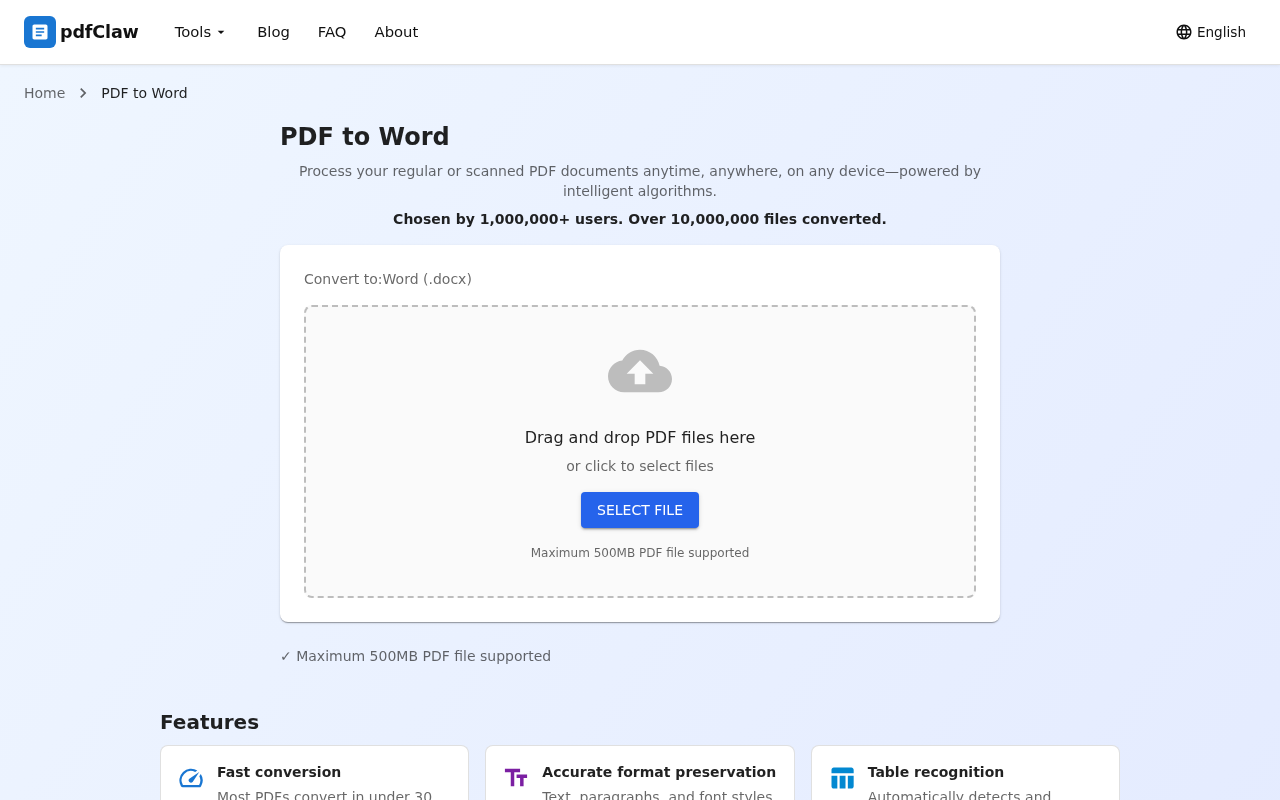
Visit the pdfClaw PDF to Word page in your browser. You'll see a clean file upload area with no ads or clutter. You can drag and drop your PDF into the dashed box or click the "SELECT FILE" button to choose your file.
Step 2: Upload your PDF — conversion starts automatically
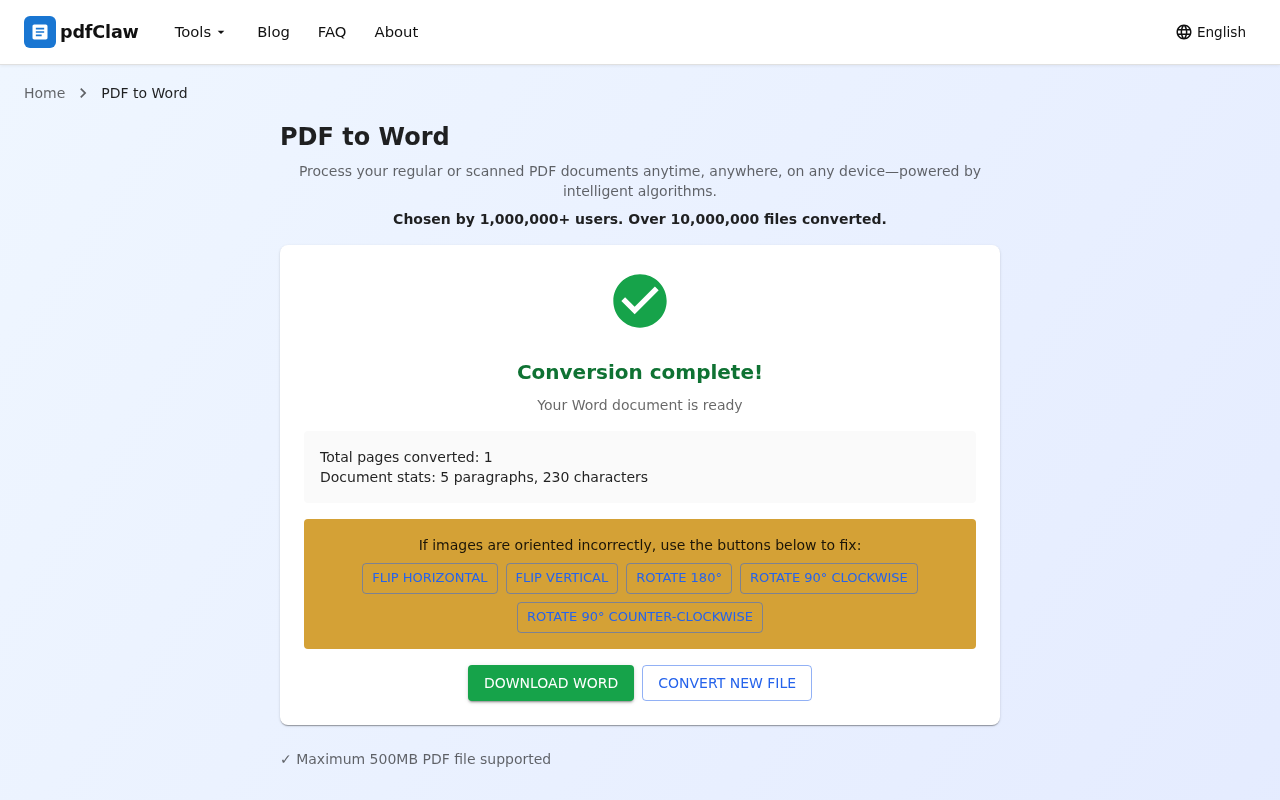
Once your PDF is uploaded, the system automatically begins conversion — no need to click any button. When complete, the page shows a green checkmark with "Conversion complete!" plus document statistics showing total pages, paragraphs, and character count.
Step 3: Download your Word document
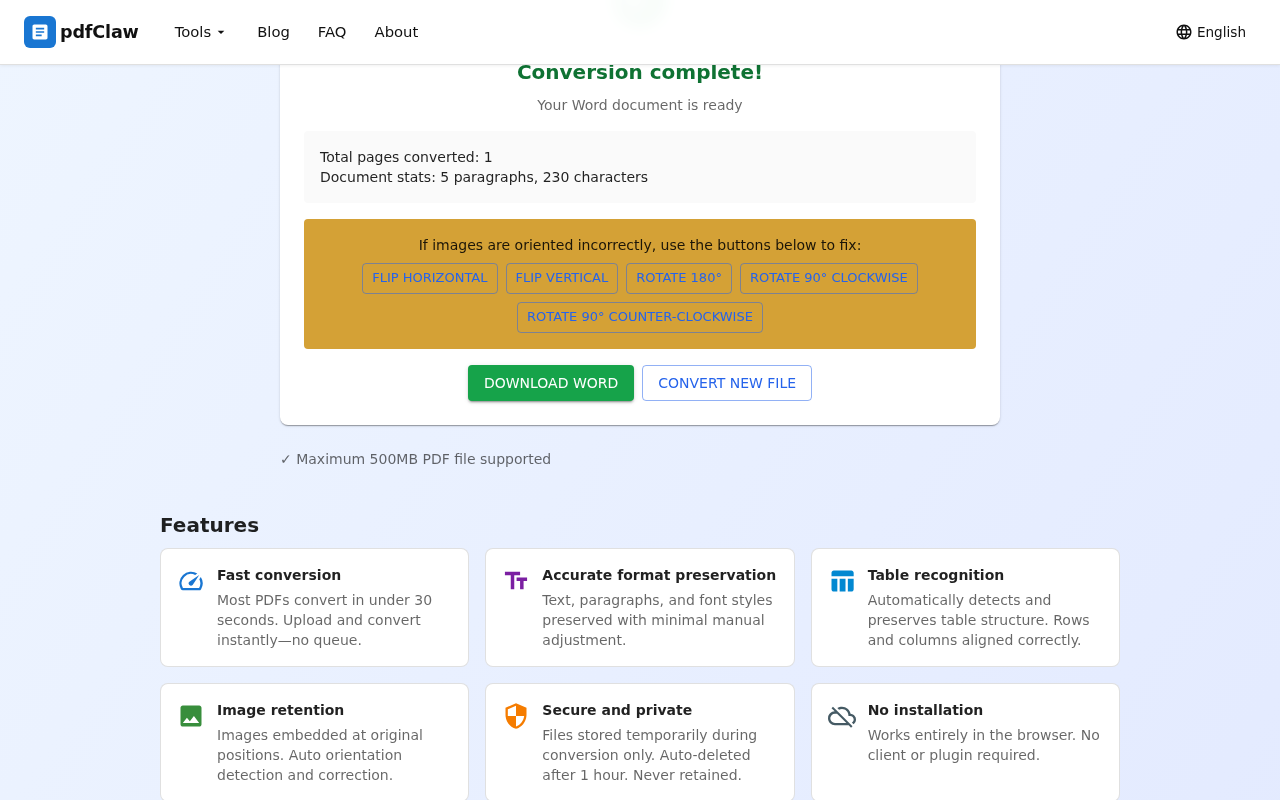
Click the yellow " DOWNLOAD WORD " button to save the .docx file to your computer. Need to convert another file? Click "CONVERT NEW FILE" to upload again.
pdfClaw highlights
:
- Completely free — no page limits, no usage caps
- Fast conversion — under 30 seconds
- Tables, images, and font styles faithfully preserved
- Files auto-deleted after 1 hour for security
- Works on desktop, phone, and tablet
Method 2: Open PDF Directly with Microsoft Word
Best for : Simple text-only PDFs; requires Microsoft Word 2013+.
Steps
- Right-click the PDF file → "Open with" → "Word"
- Word will prompt to convert the PDF — click "OK"
- Edit the converted document and save as .docx
Pros : No extra tools needed; straightforward.
Cons : Complex layouts (multi-column, nested tables) often break; Word itself is paid software.
Method 3: Use Google Docs Online
Best for : Simple text PDFs; requires a Google account.
Steps
- Upload the PDF to Google Drive
- Right-click → "Open with Google Docs"
- Go to File → Download → Microsoft Word (.docx)
Pros : Free online usage.
Cons : Requires Google account; poor table and complex layout preservation.
Method 4: Use LibreOffice (Offline)
Best for : Offline conversion needs; no internet required.
Steps
- Download and install LibreOffice (free and open-source)
- Open the PDF with LibreOffice Draw
- File → Save As → choose Word format
Pros : Completely free and open-source; works offline.
Cons : Requires installation; moderate conversion accuracy.
Comparison of All 4 Methods
| Method | Installation | Accuracy | Tables | Difficulty | File limit |
|---|---|---|---|---|---|
| pdfClaw | ❌ | ⭐⭐⭐⭐⭐ | ⭐⭐⭐⭐⭐ | Very easy | 500MB |
| Word direct open | ✅ | ⭐⭐⭐ | ⭐⭐ | Easy | None |
| Google Docs | ❌ | ⭐⭐⭐ | ⭐⭐ | Easy | Limited |
| LibreOffice | ✅ | ⭐⭐⭐ | ⭐⭐ | Moderate | None |
FAQ
Q: Will formatting break after PDF to Word conversion?
A: With professional tools like pdfClaw, text, paragraph spacing, and font styles are preserved at 95%+ accuracy. Simpler tools like Word direct open may produce formatting issues.
Q: Can scanned PDFs be converted?
A: Yes. pdfClaw has a built-in OCR engine that recognizes text in scanned documents and converts them into editable Word files.
Q: Are images preserved after conversion?
A: pdfClaw embeds images from the PDF into the Word document at their original positions — nothing is lost or shifted.
Summary
PDF to Word conversion can be done completely free. If you only need one method, go with pdfClaw — completely free, no registration, 3 steps, accurate formatting. It's the most hassle-free free conversion solution available.
✅ Completely free · ✅ No registration · ✅ Lightning fast · ✅ Accurate formatting