How to Convert PDF to Word Online – A Complete Tutorial
Don't want to install software? Want to convert PDF to Word directly online? This tutorial provides a detailed, step-by-step guide with screenshots showing how to convert PDF to Word through your browser — completely free, no registration required, done in seconds.
Why Choose Online Conversion?
Compared to traditional desktop software, online PDF to Word tools offer clear advantages:
- No installation : No software downloads, no storage space consumed
- Cross-platform : Works on Windows, Mac, Linux, phone, and tablet
- Use anywhere : Open your browser, convert, and close — done
- Always updated : Online tools update automatically
Recommended Online Tool: pdfClaw
Among online PDF to Word tools, pdfClaw is the best choice — completely free, no registration, exceptional accuracy.
Tool URL : pdf.appsclaw.com/en/convert/word
| Feature | pdfClaw | Other online tools |
|---|---|---|
| Cost | Completely free | Most have limits |
| Registration | Not required | Usually required |
| Ads | Zero ads | Often have pop-ups |
| Accuracy | AI engine, 95%+ | Varies widely |
| Speed | Under 30 seconds | Depends |
| File limit | 500MB | Typically 10-50MB |
Step-by-Step Online PDF to Word Tutorial
Step 1: Open the pdfClaw PDF to Word page
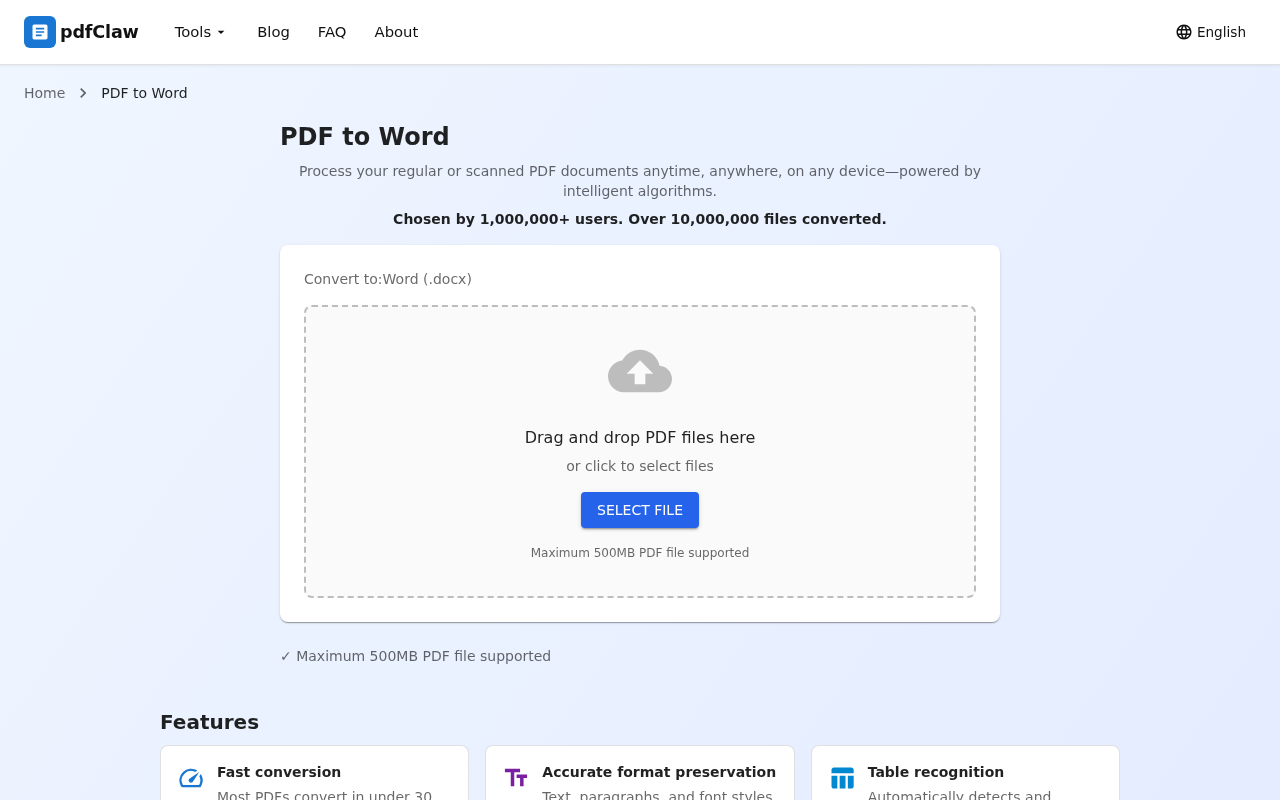
Open your browser (Chrome, Edge, Safari, Firefox all work) and navigate to:
pdf.appsclaw.com/en/convert/word
You'll see a clean interface with a central file upload area. No ads, no clutter.
Two ways to upload:
-
Drag and drop
: Drag your PDF file directly into the dashed box
-
Click to browse
: Click the blue "SELECT FILE" button to select your file
Maximum file size: 500MB .
Step 2: Upload your PDF — automatic conversion
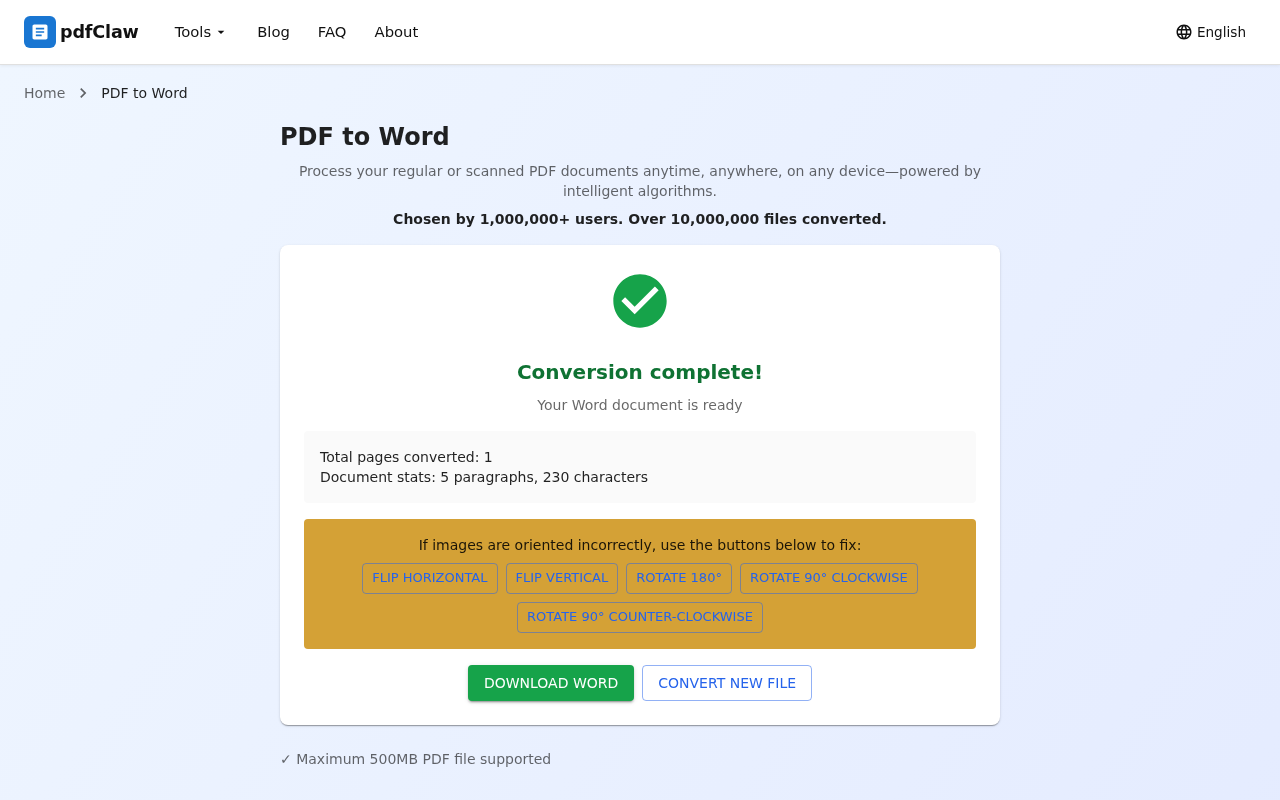
After selecting your PDF, pdfClaw automatically uploads and converts — no "Start conversion" button needed.
Conversion is typically very fast — small files finish in seconds, even large multi-page documents complete in under 30 seconds.
When done, the page displays:
- ✅
Green checkmark
with "Conversion complete!"
- 📄
Document statistics
: Total pages, paragraphs, and characters
- 🔧
Image orientation tools
: Flip or rotate if images appear incorrectly oriented
Step 3: Download your Word document
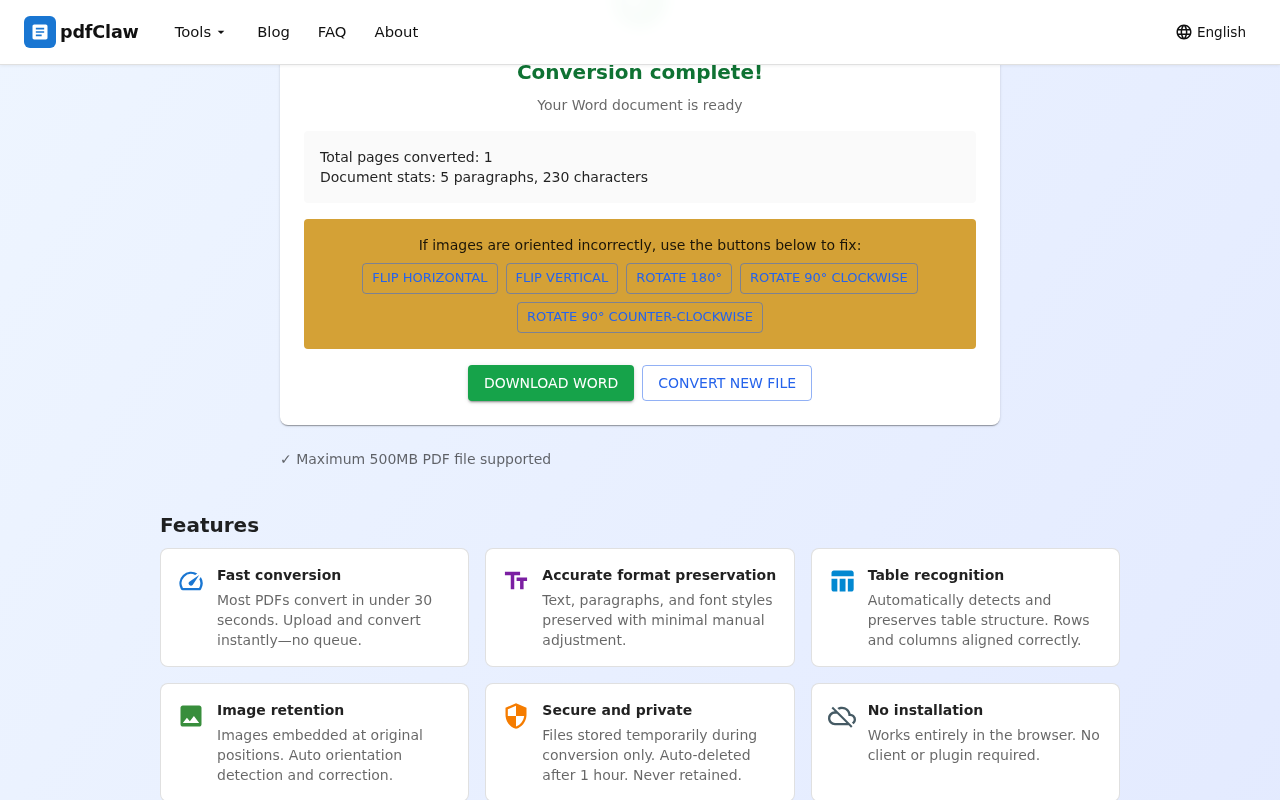
Click the prominent yellow " DOWNLOAD WORD " button. The .docx file saves to your computer's download folder.
The downloaded file opens directly in Microsoft Word, WPS, or LibreOffice.
Need to convert more files? Click "CONVERT NEW FILE" to start again.
Conversion Quality
pdfClaw's AI deep learning engine excels at:
- Text preservation : Font styles, sizes, colors, paragraph spacing — all faithfully maintained
- Table recognition : Merged cells, multi-level headers, nested tables — accurately preserved
- Image retention : Images embedded at original positions, no shifting or loss
- Layout accuracy : Multi-column layouts, mixed text-image content preserved
- OCR support : Scanned PDFs converted to editable Word documents
Works on Mobile Too
pdfClaw is a pure online tool — open pdf.appsclaw.com/en/convert/word on your phone's browser and follow the same steps:
- Open the URL in your mobile browser
- Tap to upload your PDF file
- Wait for automatic conversion
- Tap download to save the Word file
Is Online Conversion Secure?
pdfClaw provides comprehensive security:
- SSL encryption : Files encrypted during upload and download
- Auto-deletion : Files kept for maximum 1 hour, then permanently deleted
- No data retention : No files are saved, analyzed, or shared
FAQ
Q: Is there a file size limit?
A: pdfClaw supports up to 500MB PDF files — more than sufficient for everyday use.
Q: How long does conversion take?
A: Most PDFs convert in under 30 seconds; small files take just a few seconds.
Q: Is there a conversion limit?
A: No. pdfClaw has no usage limits — convert as many files as you need.
Q: Will formatting break?
A: pdfClaw's AI engine ensures high-fidelity preservation. Converted Word documents are neatly formatted with minimal need for manual adjustments.
Summary
Online PDF to Word conversion is simple — just 3 steps:
| Step | Action | Description |
|---|---|---|
| 1 | Open page | Visit pdf.appsclaw.com/en/convert/word |
| 2 | Upload file | Drag or select PDF, auto-converts |
| 3 | Download | Click "DOWNLOAD WORD" to save |
pdfClaw is the best online PDF to Word tool — completely free, no registration, exceptional accuracy. Works on any device with a browser.
✅ Completely free · ✅ No registration · ✅ Lightning fast · ✅ Accurate formatting