How to Convert PDF to Word on Your Computer for Free
Need to convert PDF files to Word documents for editing, but don't want to pay for conversion tools? Many so-called "free" tools have page limits or usage caps. So is there a truly free way to convert PDF to Word on your computer? Absolutely. This article shows you several completely free methods.
Method 1: pdfClaw Online Free Converter (Best Choice)
If you don't want to spend a dime, install any software, or create any accounts, pdfClaw is the perfect choice.
Tool URL : pdf.appsclaw.com/en/convert/word
pdfClaw is a purely online PDF to Word tool. All features are completely free — no page limits, no usage caps, no hidden charges. Its AI engine produces high-quality Word documents with accurate text, table, and image preservation.
How to Use on Your Computer
Step 1 : Open your browser (Chrome, Edge, Firefox, Safari all work) and go to pdf.appsclaw.com/en/convert/word.
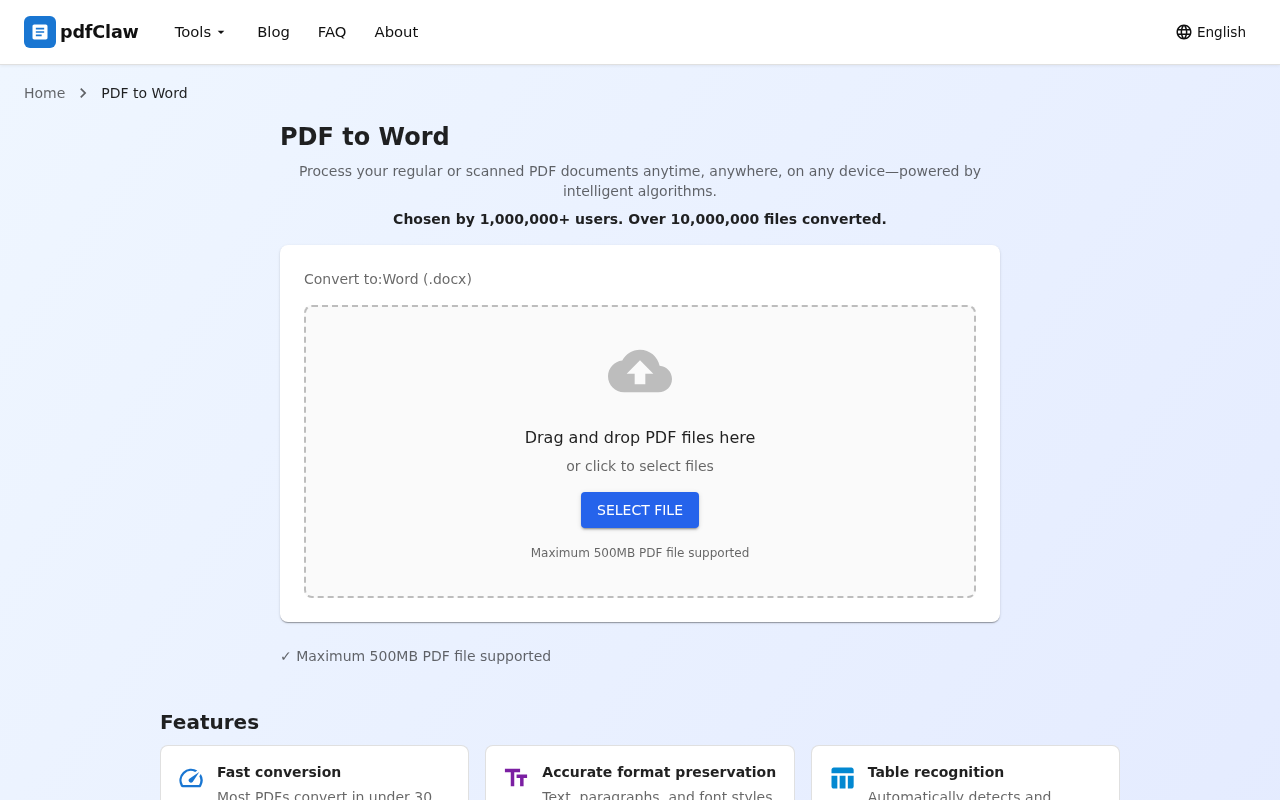
The page has a central file upload area. Drag your PDF into the dashed box, or click the blue "SELECT FILE" button to browse for your file.
Step 2 : Upload your PDF file. The conversion starts automatically — no buttons to click.
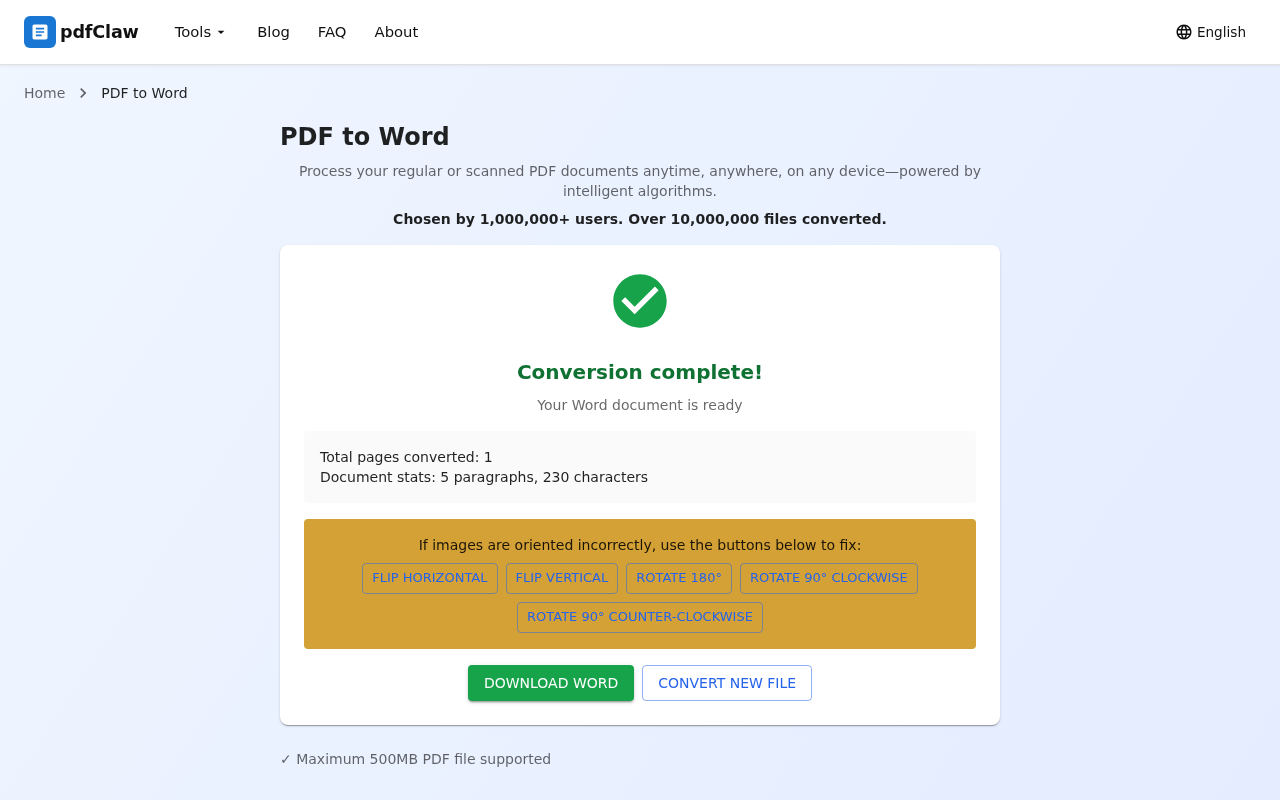
In a few seconds, you'll see a green checkmark and "Conversion complete!" The page also shows document stats — total pages, paragraphs, and characters.
Step 3 : Click the yellow "DOWNLOAD WORD" button. Your file is saved to your computer.
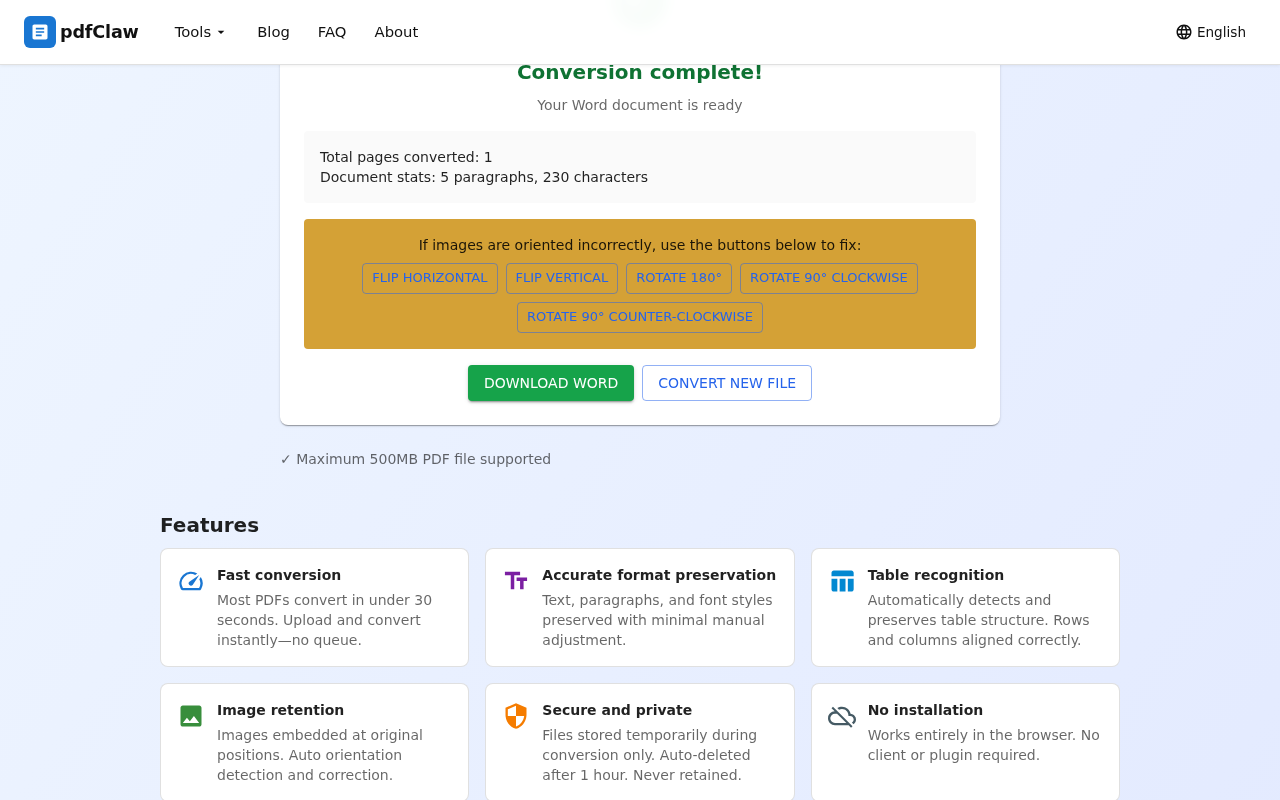
To convert another PDF, click "CONVERT NEW FILE".
Simple as that — 3 steps, under 1 minute total.
Why pdfClaw is the Best Free Option
- Zero cost : No memberships, no fees whatsoever
- Zero installation : No software to download — works in your browser
- Zero registration : No accounts, no email, no phone number
- Zero ads : No pop-ups, no upsells, no forced sign-ups
- High quality : Tables precisely preserved, text without garbling, images intact
- Secure : Files auto-deleted from servers after 1 hour
Method 2: Open PDF with Microsoft Word
If you already have Microsoft Word 2013+ installed, you can open PDFs directly.
- Right-click your PDF → "Open with" → "Microsoft Word"
- Click "OK" when prompted → wait for conversion
- Edit and save as .docx
Note : Works for simple text PDFs, but complex tables, multi-column layouts, and images often break. Word itself also requires a paid license.
Method 3: Use LibreOffice
LibreOffice is a free, open-source office suite that can open PDFs and save them as Word format.
- Download and install LibreOffice (free)
- Open your PDF with LibreOffice Draw
- File → Save As → Word format
Note : Free but requires installation; conversion accuracy is moderate for complex documents.
Method 4: WPS Office Free Version
WPS Office free version has PDF to Word conversion, but limited to 5 pages free . Beyond that requires a membership.
Comparison
| Method | Truly free | Installation | Quality | Difficulty |
|---|---|---|---|---|
| pdfClaw | ✅ Completely | ❌ Not needed | Excellent | Very easy |
| Word | ⚠️ Word is paid | ✅ Required | Fair | Easy |
| LibreOffice | ✅ Completely | ✅ Required | Fair | Moderate |
| WPS Free | ⚠️ 5-page limit | ✅ Required | Good | Easy |
Tips
- File too large? pdfClaw supports up to 500MB — more than enough for everyday documents.
- Scanned PDF? Yes — pdfClaw has built-in OCR for recognizing text in scanned documents.
- Works on phone too? Absolutely. pdfClaw is an online tool — open the same URL on your phone's browser.
- File security? pdfClaw uses SSL encryption; files are auto-deleted 1 hour after conversion.
Summary
The easiest free way to convert PDF to Word on your computer is pdfClaw . No software to install, no account to create, no money to spend — just open your browser and you're done in 3 steps with excellent conversion quality.
✅ Completely free · ✅ No registration · ✅ Lightning fast · ✅ Accurate formatting