How to Convert PDF to Word Document – A Complete Guide
PDF format is great for reading and sharing, but it can't be edited directly. When you need to modify text, tables, or formatting in a PDF, you must first convert it to a Word document. This is a complete PDF to Word conversion guide covering multiple methods, tool recommendations, comparison tables, and FAQs.
1. Core Methods for PDF to Word Conversion
Method 1: Online Tools (Most Convenient)
Online tools are the most popular way to convert PDF to Word — no installation, just open your browser.
Recommended: pdfClaw
- URL:
pdf.appsclaw.com/en/convert/word
- Features: Completely free, no registration, AI-powered high-accuracy conversion
- Best for: Everyone — especially those who value convenience and quality
Method 2: Desktop Software
Installed software like Adobe Acrobat, WPS, LibreOffice.
- Features: Offline support, comprehensive functionality
- Best for: Users with privacy requirements or local processing needs
Method 3: Office Software Direct Open
Microsoft Word 2013+ can open PDFs and convert them to editable documents.
- Features: No extra tools needed, simple operation
- Best for: Users with licensed Word and simple documents
Method 4: Programming Scripts
Python libraries like pdf2docx, pdfplumber for batch conversion.
- Features: Automation for large-scale processing
- Best for: Developers and technical users
2. Recommended Solution: pdfClaw Online Conversion
pdfClaw online conversion offers the best overall experience — free, convenient, and accurate.
Why Choose pdfClaw?
| Aspect | pdfClaw Performance |
|---|---|
| Cost | Completely free — no charges |
| Registration | Not required — instant access |
| Installation | Not required — browser-based |
| Accuracy | AI engine, 95%+ fidelity |
| Text | Font, size, color, bold/italic fully preserved |
| Tables | Merged cells, multi-level headers accurately reproduced |
| Images | Embedded at original positions |
| OCR | Supports scanned PDF text recognition |
| File limit | Up to 500MB |
| Speed | Under 30 seconds |
| Security | SSL encrypted, auto-deleted after 1 hour |
Step-by-Step Tutorial
Step 1: Open the pdfClaw conversion page
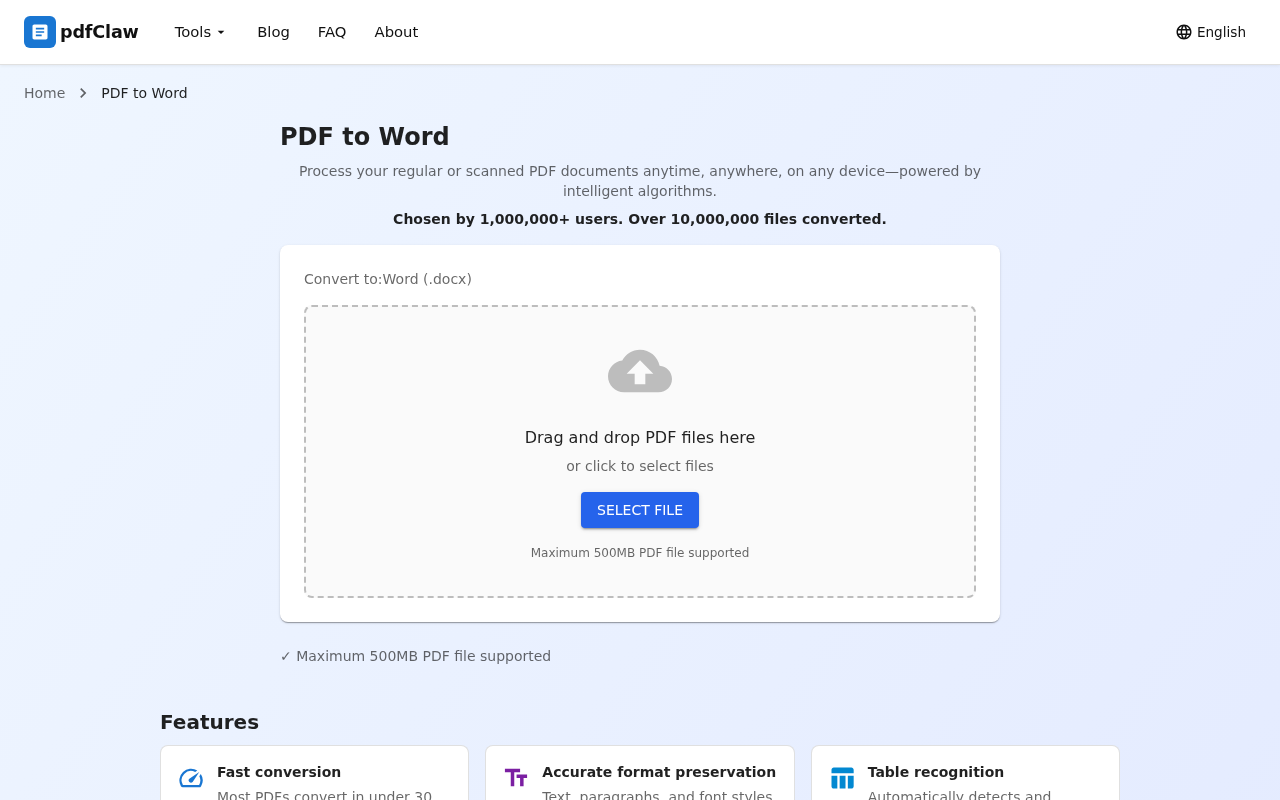
Visit
pdf.appsclaw.com/en/convert/word
in your browser. The central upload area lets you:
-
Drag and drop
your PDF into the dashed box
- Click the blue "
SELECT FILE
" button to browse
Step 2: Upload PDF — automatic conversion
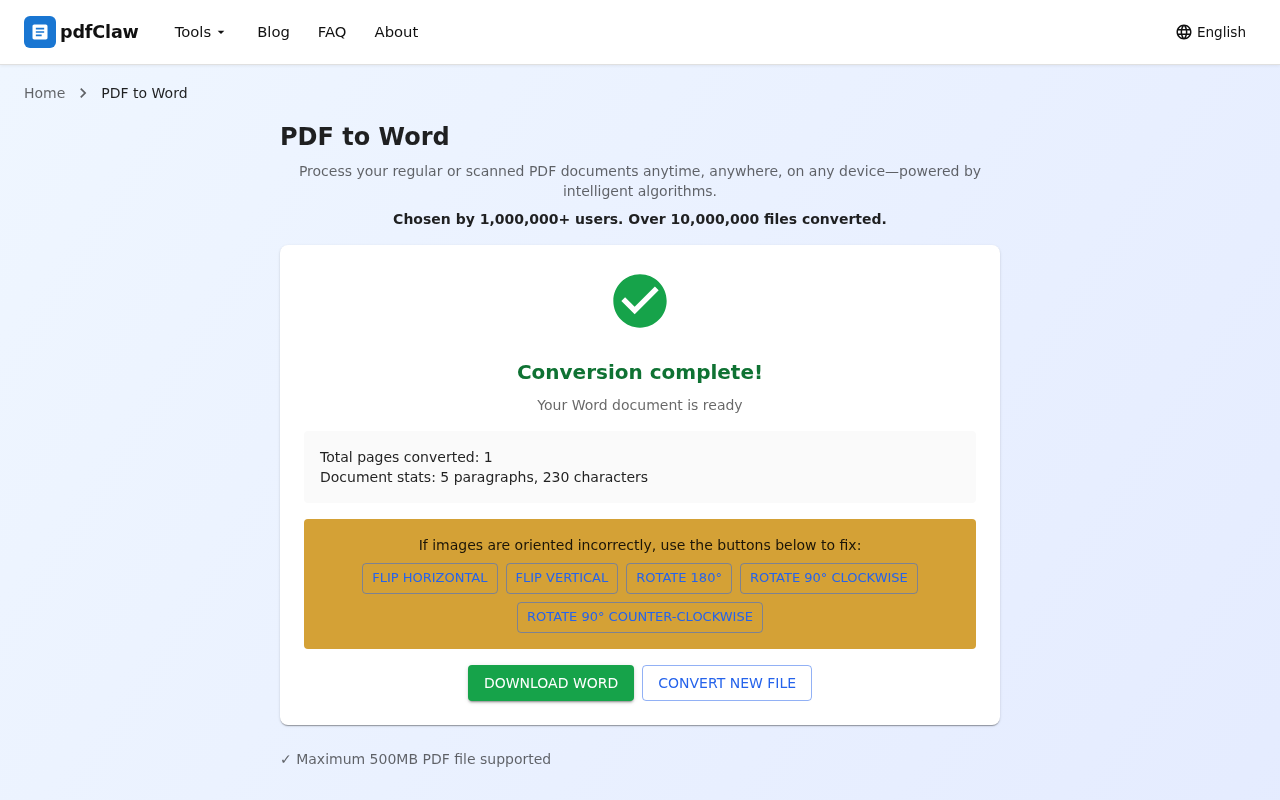
After uploading, pdfClaw auto-converts — no button clicks needed. Small files finish in seconds; large files within 30 seconds.
When complete:
- ✅ Green checkmark with "Conversion complete!"
- 📄 Document stats: pages, paragraphs, characters
- 🔧 Image orientation tools (optional)
Step 3: Download Word document
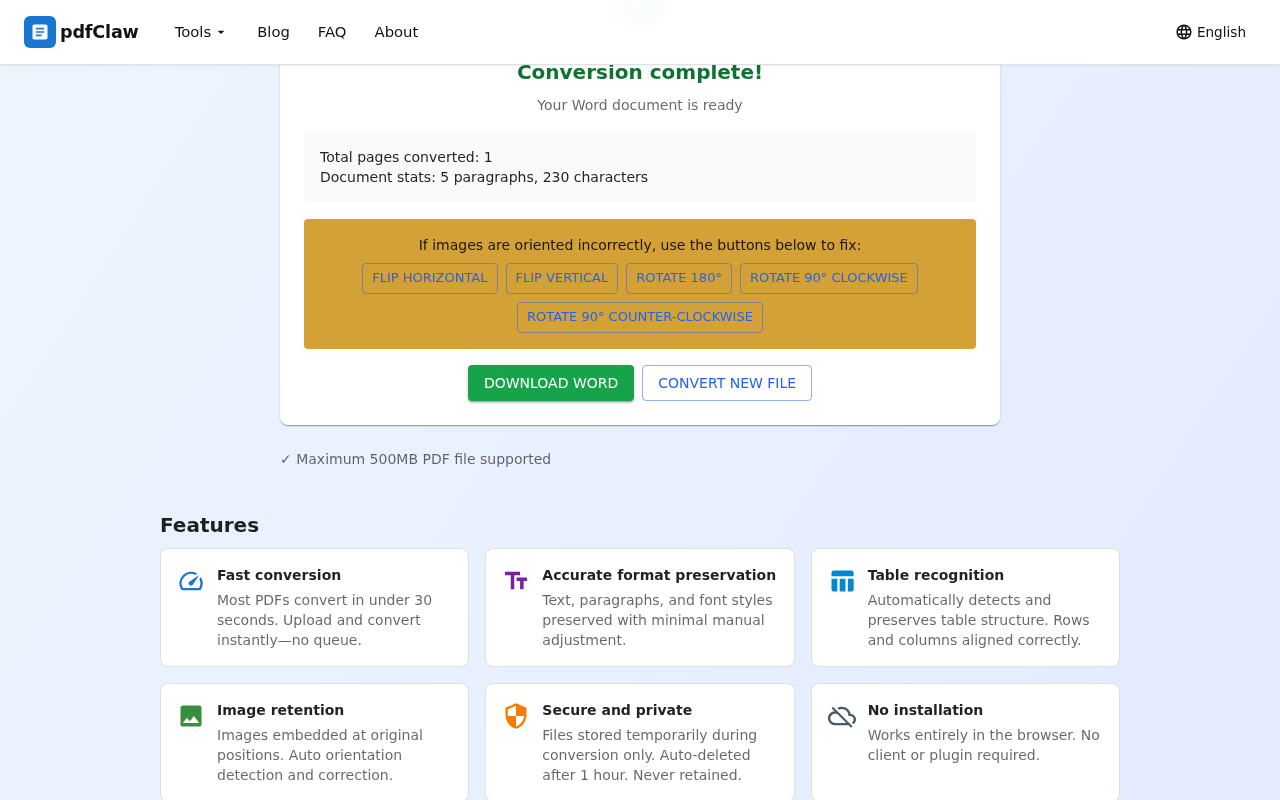
Click the yellow " DOWNLOAD WORD " button to save the .docx file. Click "CONVERT NEW FILE" for more conversions.
Key Features
- Fast conversion : Most PDFs complete in under 30 seconds
- Accurate formatting : Text, paragraphs, font styles faithfully preserved
- Table recognition : Automatic detection and preservation of table structures
- Image retention : Images placed at original positions in Word
- Secure & private : Files auto-deleted after 1 hour
- No installation : Works entirely in your browser
3. Recommendations by PDF Type
Editable PDFs (Standard Text PDFs)
Text can be selected and copied — easiest to convert. pdfClaw achieves 95%+ accuracy.
Recommended : pdfClaw online conversion
Scanned PDFs (Image-based)
Composed of scanned images — text can't be selected. Requires OCR technology.
Recommended : pdfClaw (built-in OCR for multilingual recognition)
Table-Heavy PDFs
Contracts, financial reports, data sheets with extensive tables.
Recommended : pdfClaw (excellent table recognition — merged cells, multi-level headers)
Mixed Text-Image PDFs
Complex documents with text, images, and charts.
Recommended : pdfClaw (images embedded at original positions, text accurately preserved)
4. Tool Comparison
| Tool | Type | Free | Install | Sign-up | Accuracy | Speed |
|---|---|---|---|---|---|---|
| pdfClaw | Online | ✅ Fully | ❌ | ❌ | ⭐⭐⭐⭐⭐ | Very fast |
| Adobe Acrobat | Desktop | ❌ Paid | ✅ | ✅ | ⭐⭐⭐⭐⭐ | Fast |
| WPS | Desktop | ⚠️ 5 pages | ✅ | ✅ | ⭐⭐⭐⭐ | Fast |
| Word direct | Desktop | ⚠️ | — | — | ⭐⭐⭐ | Medium |
| LibreOffice | Desktop | ✅ Free | ✅ | ❌ | ⭐⭐⭐ | Medium |
| Google Docs | Online | ✅ Free | ❌ | ✅ | ⭐⭐⭐ | Medium |
5. FAQ
Q: Will formatting change after conversion?
A: Good tools preserve 95%+ formatting. pdfClaw's AI engine delivers high fidelity for text, tables, and images.
Q: Can encrypted PDFs be converted?
A: Password-protected PDFs need to be unlocked first. Unprotected PDFs convert directly.
Q: Can the converted Word be printed?
A: Yes. The .docx file is a standard Word document — edit, format, and print as normal.
Q: Is the conversion secure?
A: pdfClaw uses SSL encryption. Files auto-deleted after 1 hour — no data retained.
Q: Works on mobile?
A: Yes. Open pdf.appsclaw.com/en/convert/word on any mobile browser.
6. Summary
Choose the method that fits your needs:
| Need | Recommendation |
|---|---|
| Free, fast, accurate | pdfClaw (top choice) |
| Offline, sensitive files | Adobe Acrobat / LibreOffice |
| Have Word, simple docs | Word direct open |
| Batch automation | Python scripts |
For most users, pdfClaw is the optimal solution — completely free, no registration, exceptional accuracy, just 3 steps.
| Step | Action | Description |
|---|---|---|
| 1 | Open page | Visit pdf.appsclaw.com/en/convert/word |
| 2 | Upload file | Drag or select PDF, auto-converts |
| 3 | Download | Click "DOWNLOAD WORD" to save |
✅ Completely free · ✅ No registration · ✅ Lightning fast · ✅ Accurate formatting