How to Convert PDF to Word Text for Free – Best No-Cost Methods
Want to extract text from a PDF and convert it to Word, but don't want to pay? Many so-called "free" tools turn out to require payment after a trial. This article shows you genuinely free methods to convert PDF to Word — tested, proven, and truly no-cost.
Method 1: pdfClaw Online Converter (Highly Recommended)
Why recommended : Truly free, high-quality conversion, done in 3 steps.
Tool URL : pdf.appsclaw.com/en/convert/word
pdfClaw is an online PDF to Word tool that excels at being completely free:
- No charges : All features completely free — no "basic free, premium paid" tricks
- No limits : No page caps, no usage caps, no file size limits (up to 500MB)
- No registration : No account creation, no email or phone number required
- No installation : No software downloads — works in your browser
- No pop-ups : No ads, no upsells, no forced follows
How to Use
Step 1 : Open pdf.appsclaw.com/en/convert/word in your browser.
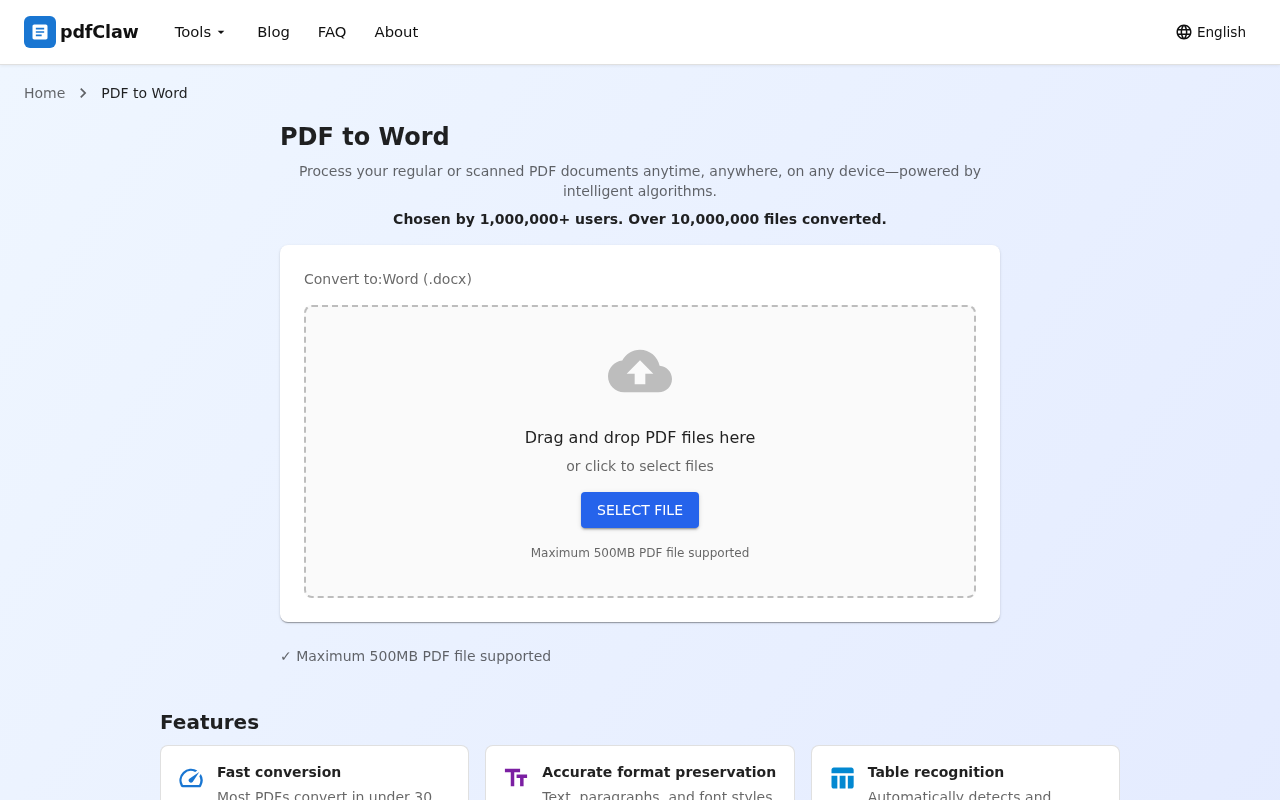
The page has a central upload area. Drag your PDF into the dashed box, or click "SELECT FILE" to browse.
Step 2 : Upload your PDF. The system auto-converts — just wait a few seconds.
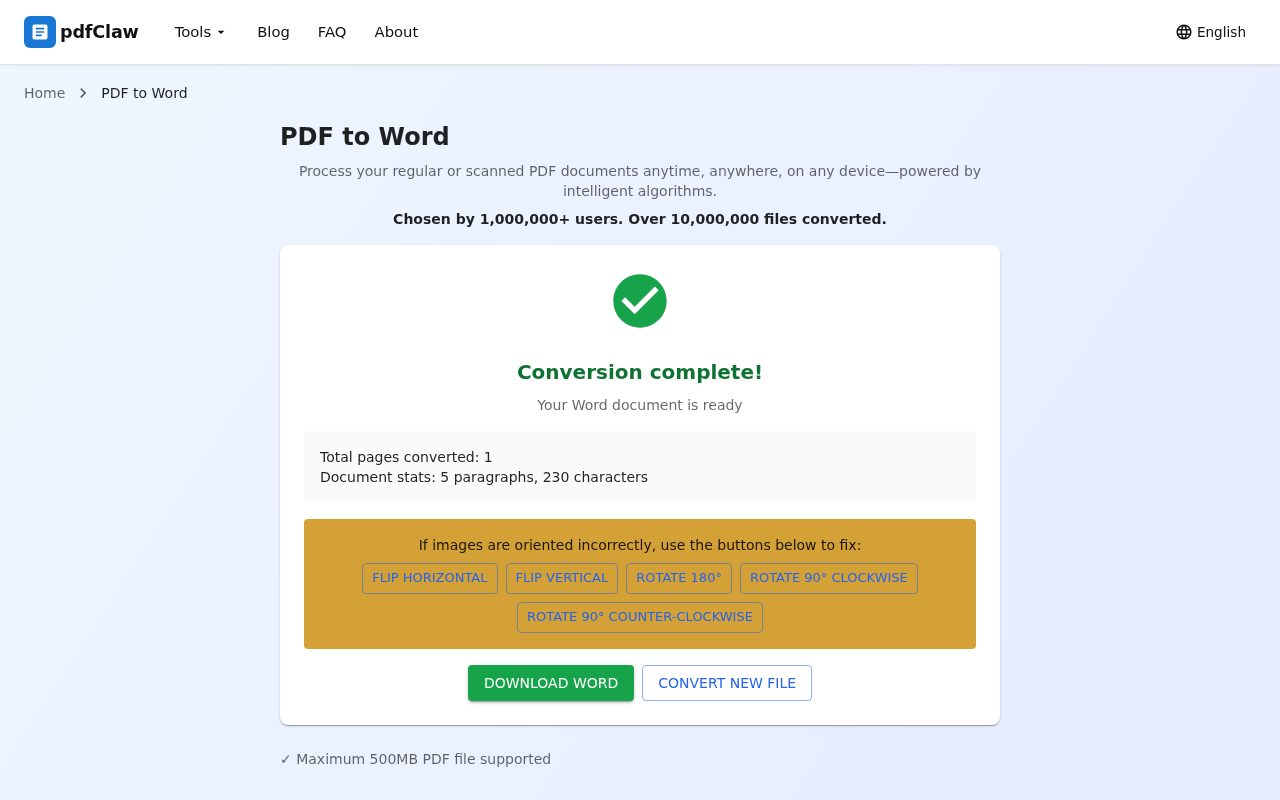
When you see the green checkmark and "Conversion complete!", the page also shows document statistics — total pages, paragraphs, and characters.
Step 3 : Click the yellow "DOWNLOAD WORD" button. Your Word file is saved to your computer.
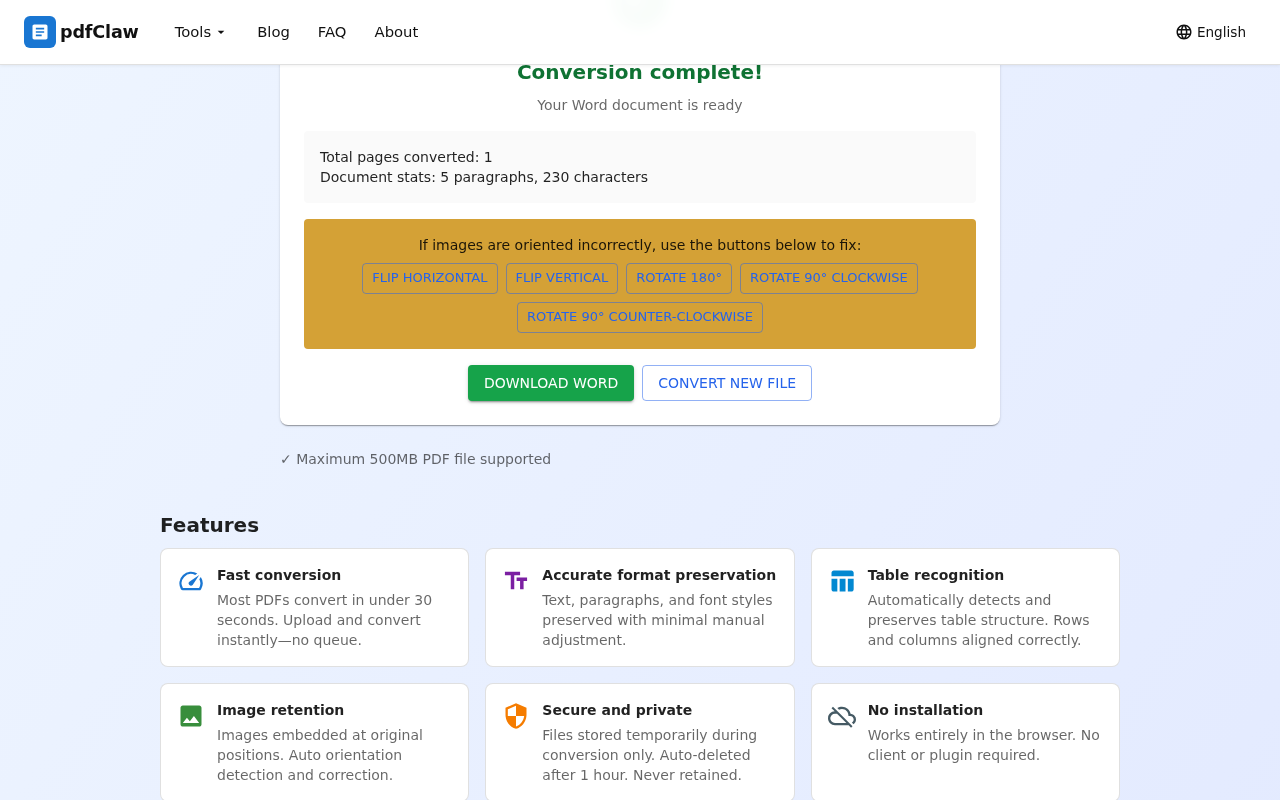
To convert another file, click "CONVERT NEW FILE".
Conversion Quality
pdfClaw uses an AI deep learning engine — top-tier quality among free tools:
- Precise text : Font styles, sizes, colors, bold/italic — all preserved, no garbling
- Perfect tables : Merged cells, multi-level headers, nested tables — accurately reproduced
- Images retained : PDF images embedded in Word at original positions
- Clean layout : Paragraph spacing, indentation, multi-column layouts preserved
Method 2: Open PDF with Word
If you have Microsoft Word 2013+, you can open PDFs directly.
Steps : Right-click PDF → Open with Word → Click OK → Edit and save.
Pros
: Simple, no extra tools.
Cons
: Word license costs money; complex layouts break; scanned PDFs can't be read.
Method 3: Copy and Paste (Most Basic)
If PDF text is selectable, you can simply copy-paste into Word.
Pros
: No tools needed at all.
Cons
: All formatting lost (fonts, tables, images gone); scanned PDFs can't be selected; tedious for long documents.
Method 4: LibreOffice
Free open-source software that opens PDFs and saves as Word.
Pros
: Free, works offline.
Cons
: Requires installation; moderate accuracy.
Method 5: Python Script (For Developers)
        from pdf2docx import Converter
cv = Converter("input.pdf")
cv.convert("output.docx")
cv.close()
Pros
: Free, batch capable.
Cons
: Requires programming knowledge.
Comparison
| Method | Free | No install | No sign-up | Text accuracy | Tables | Images |
|---|---|---|---|---|---|---|
| pdfClaw | ✅ | ✅ | ✅ | ⭐⭐⭐⭐⭐ | ⭐⭐⭐⭐⭐ | ✅ |
| Word open | ⚠️ | — | — | ⭐⭐⭐ | ⭐⭐ | ⚠️ |
| Copy-paste | ✅ | ✅ | ✅ | ⭐⭐ | ❌ | ❌ |
| LibreOffice | ✅ | ❌ | ✅ | ⭐⭐⭐ | ⭐⭐ | ⚠️ |
| Python | ✅ | — | — | ⭐⭐⭐ | ⭐⭐⭐ | ⚠️ |
How to Spot "Fake Free" Tools
Many PDF conversion tools claim "free" but hide charges. Common tricks:
- "Free trial X times" : Pay after a few uses (e.g., Smallpdf)
- "Free for 5 pages" : Full conversion requires membership (e.g., WPS)
- "Free but watermarked" : Remove watermarks for a fee
- "Register to download" : Free conversion but requires sign-up to save
pdfClaw has none of these tricks — completely free, no limits, no watermarks, no registration to download.
FAQ
Q: Can scanned PDFs be converted for free?
A: Yes. pdfClaw's built-in OCR engine recognizes text in scanned documents and converts to editable Word — completely free.
Q: Can the converted Word be edited directly?
A: Yes. The .docx output is standard Word format — open and edit in Word, WPS, or LibreOffice.
Q: How many times can I convert per day?
A: Unlimited. pdfClaw has no usage caps.
Summary
The best free way to convert PDF to Word is pdfClaw . Truly free, no registration, no installation, no limits, with high accuracy. 3 steps, seconds to complete — the most hassle-free free solution.
✅ Completely free · ✅ No registration · ✅ Lightning fast · ✅ Accurate formatting